

Photo slideshow maker on mac, embed flash slideshow to web

For mac user, it is easy to make a video slideshow with imovie with an iPhoto library full of photos. To be frank, imovie is designed primarily to capture and edit digital video, however it also has the ability to import still images and employ professional-looking transitions like wipes and dissolves, add audio and text narration, and lay down a soundtrack that works in conjunction with the photos. By making full use of this feature, we can build a m4v video with static photos.
Make a free imovie slideshow step by step
Launch iMovie and Create a new project
Open your iMovie program and Right click on the Project Library, choose "New Project" in the menu. And input Project Name and select your favorite slideshow Theme. Hit "Create".
Collect Photos
Click on the "Photos" icon to display your photo library. Enter your iPhoto program in a separate window and select the photos you would like to add to your slideshow. Click and drag the photos into the iMovie window. The photos are automatically added to the iMovie photo library. Quit iPhoto after you add all the photos you want and return to iMovie.
Drag the pictures into the timeline
Place the photos onto the timeline once you are happy with the sizes and effects. Simply drag the pictures into the timeline in the order you would like them to appear. To add more pictures into the timeline click on the clip viewer icon. And drag your pictures into the timeline.When you drag your photos to the timeline, a redline appears below the pictures. The computer needs to process the pictures and the redline shows the progress.
Add effects to your photos
Clicking on the photo, then choose the desired effect on the tool bar, You can add music, text and transition to photo slideshow.
To apply the effect click on the first photo, and click update. Once again the redline appears to render the effect. I'll click update for all of my pictures. After its finished rendering I'll click on the gray part of the timeline to deselect the clips.
To shorten the picture length in the timeline click the timeline viewer icon, zoom out, and click and drag on the edge of each photo to shorten the length.
To make your slideshow even nicer, click on the transitions icon and drag a cross dissolve between each picture.
Export iMovie slideshow
Right click and choose "Export movie", select some parameters according to your requirement. Finally, you will find the exported movie is in M4V formats.
Embed imovie slideshow to web easily
Picture slideshow exported from imovie is m4v formats, not compatible with web, so now we need to convert m4v slideshow to flash slideshow for embedding to web.
Secure Download
Secure Download
Flash slideshow maker mac supports convert m4v photo slideshow movie to Flash FLV/SWF, and automatically generate an HTML web page embedding with flash video swf with flash video player.
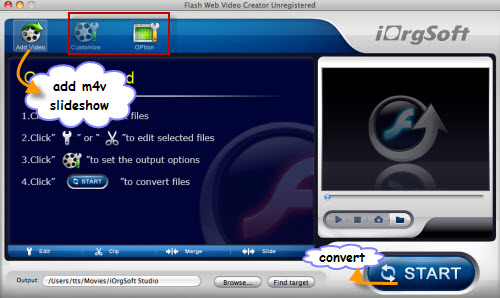
After finishing convert m4v slideshow to Flash slideshow in FLV/SWF on mac with Flash slideshow maker. Open the output folder, upload the converted flv/swf files to web directly or open html file with Dashcode and copy the required codes to your website.
Related Articles
- How to convert AVI to Flash on Mac os x?
- How to embed mts files to Flash web on Mac?
- Convert mp4 to flash web page on mac
- Step by step convert, edit, customize video using Flash web video creator Mac
- Convert QuickTime 7 mov files to Flash
- Best PDF to Flash SWF Creator to Create Flash Fipper Book from PDF files
- PDF vs. Flash Paper .Why should you converting into Flash or SWF format
Hot Article
- Step by step convert, edit, customize video using Flash web video creator Mac
- Best PDF to Flash SWF Creator to Create Flash Fipper Book from PDF files
- How to Upload PDF Files to Blog Easily on Mac
- Convert mp4 to flash web page on mac
- SWF to MP4 Converter for Mac lion
- How to convert AVI to Flash on Mac os x?
- How to Turn SWF Files to AVI format with SWF to AVI Converter for Mac
- Embed Windows Movie Maker Photo slideshow to Web
- Mac SWF to GIF Converter
- Convert MOV to Flash