

Kodak Video Converter is an effective and versatile mov converting tool for you to convert different Kodak camcorders (Kodak zi6, Kodak Zx1, Kodak zi8, Kodak Playsport, Kodak Zx3, Kodak EasyShare) mov to any other currently used video formats like avi,,3gp, 3g2, mpeg-4, mpg, mov, flv, swf, wmv, dv, m4v, mkv and so on. Besides, you can not only convert the Kodak mov files to other formats, but also to other popular editing tools including Movie Maker, DVD Maker, Final Cut Pro, iMovie, Avid, Adobe Premiere, Sony Vegas, etc, or to the online sharing websites such as YouTube, Vimeo, Facebook, HTML, etc, or to the portable devices including iPhone, iPad, iTouch, Samsung Galaxy Tab, Samsung Galaxy Note, Samsung Galaxy S, HTC, Sony Xperia, Google Nexus, Amazon Kindle Fire, Microsoft Surface, and so on so far.
Now than we call it as a versatile tool, Video Converter for Kodak Camera is great in not only the capability to do the conversion thing, but also in the capability to further edit your Kodak mov files. You can freely crop, trim, add, merge your video files, if you want the specific introduction of these editing feature, you can just click here: Guide for Kodak Video Converter
Secure Download
30 Day Money Back Guarantee
For the first step, you can simply download the video converter free on trial and then have it installed to get ready.
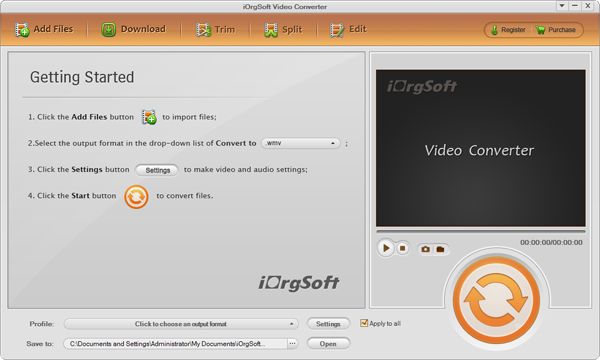
Secondly, you can double click the converter icon to launch it. After that, import your Kodak videos on it. You can load the mov videos by striking the “Add Files” in the upper-left corner of the interface, then you should single click your on-converting video to import them. Batch conversion is also available.
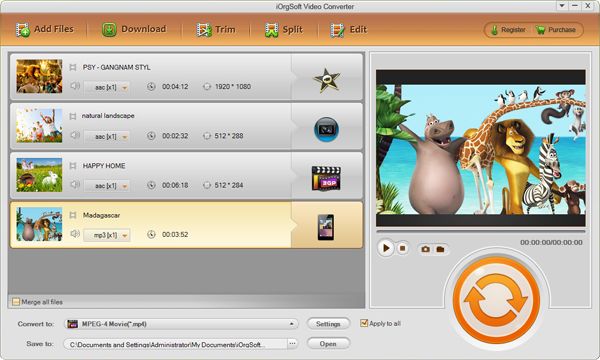
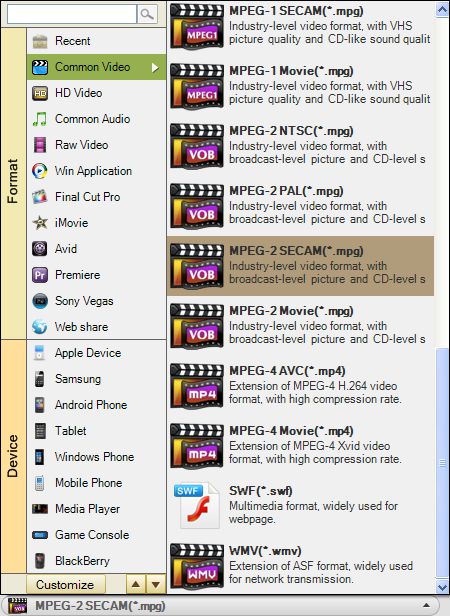
This is the most important step that you should choose the target format to output. You can make it just by striking the “Convert to” bar and choose the exact output format you need. Also, you can select your output path by hitting the “Save to” bar and select the path.
Lastly, you should start the conversion of your Kodak video by clicking the big round orange button, i.e. the “Convert” button. After the conversion, you can find your converted video files by clicking the “Open” button in the bottom of the interface.
$39.95
Make DVDs from common videos in formats like mp4, wmv, mkv, mov etc to DVD fast and easily.


$35.00
Convert MOD files to MP4, MKV, MOV, etc, play back MOD videos on iPad, iPhone, etc, and edit MOD.
$35.00
Easily and quickly convert AVCHD files to popular video formats without quality loss.




Terms & Conditions| Privacy| Sitemap| Contact Us| About Us| Affiliate| Newsletter| License Agreement| Uninstall
Browser compatibility : IE/Firefox/Chrome/Opera/Safari/Maxthon/Netscape
Copyright © 2007-2016 iOrgsoft Studio All Rights Reserved