

Convert AVI to BlackBerry

Can AVI be supported by BlackBerry devices? You may be confused that why some .avi files can be playable on BlackBerry, while other AVI files can’t be recognized. Generally speaking, only the .avi files with MPEG-4 or MJPEG codecs can be compatible with BlackBerry devices. If your .avi files are associated with Xvid or Divx codec, these .avi files may be refused by BlackBerry.
In order to make any .avi file acceptable by BlackBerry, you may need to convert AVI to BlackBerry-friendly format with iOrgSoft AVI to BlackBerry Video Converter. Besides acting as the BlackBerry video conversion program, the AVI to BlackBerry Video Converter also provides rich editing functions such as video trimming, video cropping, applying video effects and more.
Secure Download
Secure Download
Step-by-step tutorial: How to convert AVI to BlackBerry
Load .avi file(s)
After installing the BlackBerry Video Converter, run the program. Then you can see the interface as below:
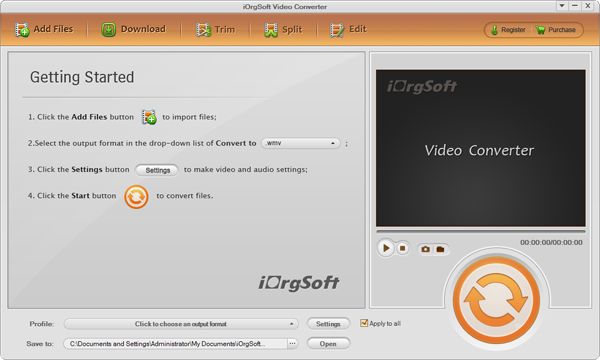
Then, go to "+" menu and locate the .avi file you want to add.
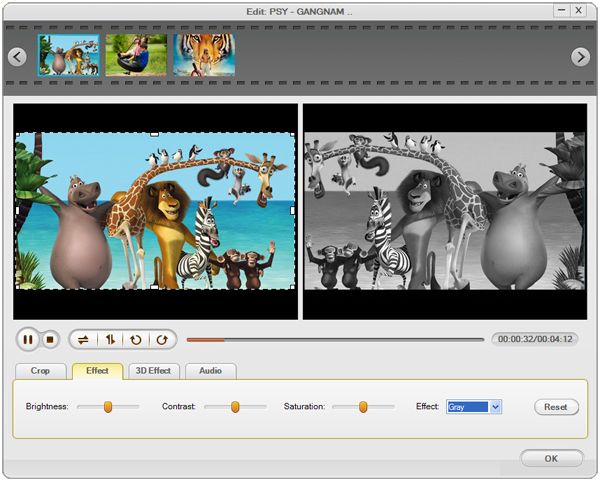
Apply video effect (If needed)
Click "Effect" button to customize the video effects. You can apply any effects from brightness, contrast, saturation, Gray, Emboss, Old film, horizontal rotating, or vertical rotating.
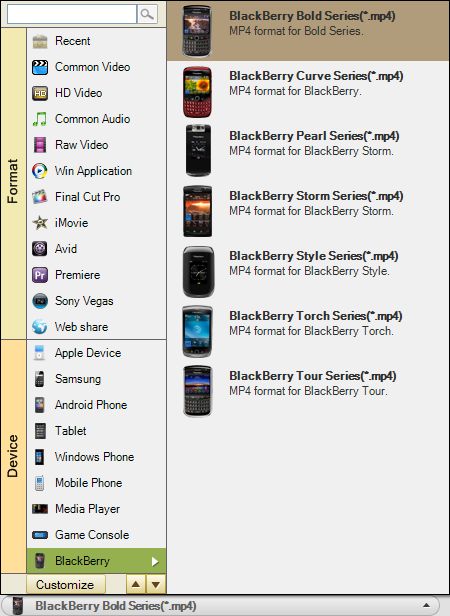
Choose output file format
Go to the "Convert" panel; choose BlackBerry MP4 as output format from Format list under the drop-menu of "Profile".
Begin to convert AVI to BlackBerry
In the "Convert" panel, click "Convert" to launch the conversion from AVI to MP4 for BlackBerry. Isn’t easy enough? Now, feel free to free download the BlackBerry Video Converter for Windows or Mac and have wonderful digital life.
Related Articles
- How to Convert AVI to MP4/MOV/WMV/FLV on Windows and Mac(Lion included)
- How to Edit AVI Files with AVI Editor?
- How to Convert AVI files to Xbox 360 for Playback
- Convert video to BlackBerry
- Convert WMV to BlackBerry
- How to Play FLV Video on BlackBerry
- AVCHD video to BlackBerry PlayBook.
- MKV to BlackBerry Converter