

TiVo to Apple TV Converter for mac

How to convert/transfer the TiVo recordings to Apple TV on Mac
"The 26th UNIVERSIADE will be held on 12th,August,and you are looking forward to the sports event for unprecedented UNIVERSIADE viewing experience, you just have Apple TV and eager to experience a wonderful audio-visual enjoyment by viewing TiVo shows on your Apple TV,you are wondering how did you put TiVo on an iPod touch. While, here I offer one simple resolution for you-an excellent tool for converting tivo files to Apple TV format.
To convert TiVo videos to Apple TV, iOrgsoft Video Converter for Mac could be one of the best tools to do the job. This program allows you to convert TiVo recordings to H.264/MPEG-4 mp4, mov, and m4v videos with 100% original quality and ultra-fast converting speed. This easy-to-use program comes with an intuitive interface which makes it does not require special skill about using computer or software. In addition, this program provides wonderful editing functions such as trimming, cropping, splitting, adjust video effects, adding 3D effect to video, etc. to customize movies.
Now download and install this program on your Mac, follow the steps below to see how.
Secure Download
Secure Download
How to Convert TiVo TV Shows to Apple TV on Mac
Before converting, you need to transfer the TiVo files to your Mac. TiVo Decode Manager is the best tool to complete this job, if you do not know how, click here.
Import the TiVo Videos to the Converter
After you have fetched the TiVo videos and transfer them to your Mac, run iOrgsoft TiVo to Apple TV Converter. Hit the Add Files button or directly drag&drop the TiVo video files to the Converter, you can import several video files to the program at one time since the batch conversion feature is enabled. After the files are added, the editing buttons are enlightened, you can customize your videos if you would like to.
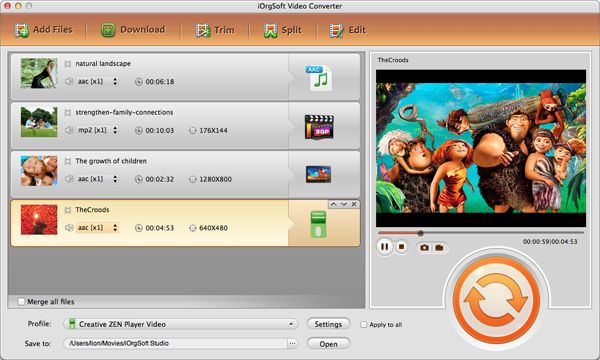
Set proper output format for Apple TV
Click the Profile box, then you will see the format list open, go to the Apple device column to select the output format as per your device model. All the profiles in the list are optimized for the corresponding devices, you do not need to set otherwise.
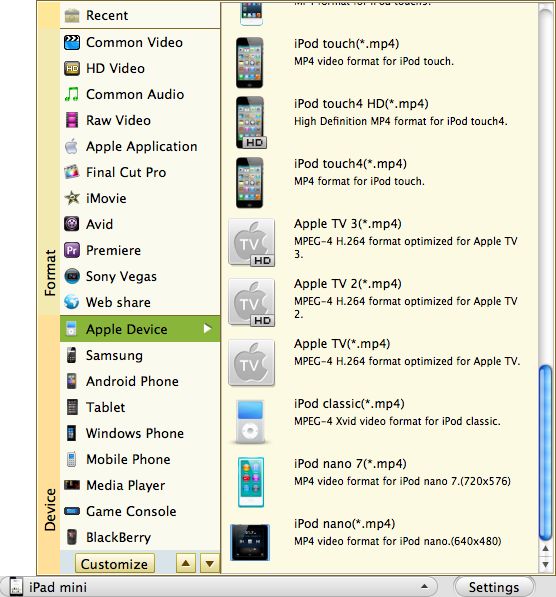
Start to covert TiVo videos to Apple TV
Click the Save to box to set the output path to save the converted video, and then hit the Convert button at the bottom to start converting TiVo files to Apple TV. Due to the fast converting speed, you will get the converted files soon after you start the conversion.