

How to Convert 3GP to FLV for Sharing on YouTube

"I have shot some videos with my Nokia phone, the videos are with the extension of .3gp, I want to upload the YouTube to share the funny videos with my friends, however, the 3GP videos are not accepted by YouTube, I know FLV is the best format for YouTube now, but cannot find a workable app to change the 3GP to FLV, so, can anyone suggest something to help me out? Thanks in advance."
If you are in the same situation, you have come to the right place, for this article will share you an easy yet efficient solution to convert 3GP videos to FLV.
To Convert 3GP to FLV successfully and quickly, a smart 3GP to FLV Converter is needed, here, iOrgsoft FLV Video Converter, a professional yet easy-to-use program specially designed to convert 3GP videos to common formats, is highly recommended. With this smart tool, you can easily convert your 3GP recordings to FLV for uploading and sharing on YouTube, other supported formats including MKV,WMV, MOV, MPG, AVCHD, MTS, M4V, etc.
Secure Download
Secure Download
Load 3GP videos to the program
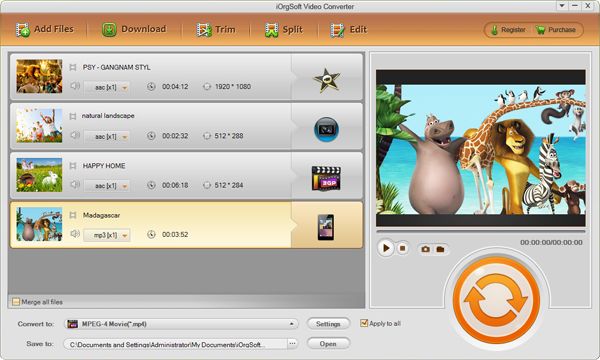
Running the 3GP to FLV Converter, press "Add files" button to import your 3GP videos to the program, you are allowed to import many files to the program at one go for the batch converting feature is enabled. If you are using the Mac FLV Converter, you can directly drag and drop the 3GP videos to the program.
Select output format
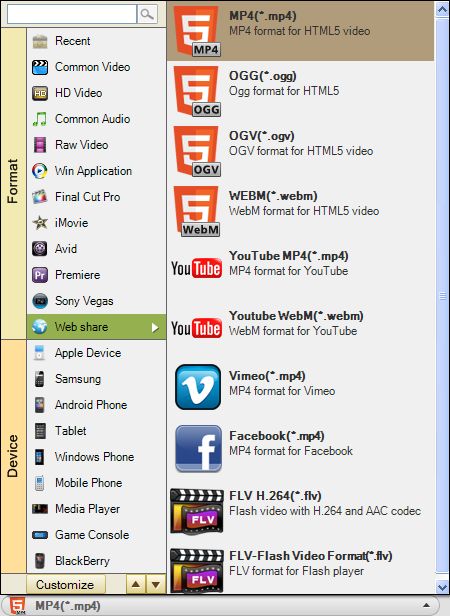
The default output format is FLV, however, you can also convert your 3GP videos to other formats for certain uses, to change the format, you just need to hit the format icon, then select the one from the format list to set as output format.
Convert 3GP to FLV
Finally, when you feel everything is OK, click "Convert" button to start converting .3gp to .flv. All the rest job will be completed automatically, and when the conversion is finished, a message will pop up to direct you to find the converted files, then you can upload them to YouTube to share with your friends.
Related Articles
- How to Convert 3GP to MP4/AVI/WMV/MOV/FLV
- How to Edit 3GP Video with 3GP Editor
- How to Convert 3GP to AVI on Mac and Windows (Windows 8 included)
- How to edit FLV video files with FLV Video Editor?
- Convert JVC Everio to FLV
- Best Solution to Convert XAVC to YouTube FLV on Mac and Windows
- Convert Flip Video to flash video FLV
- How to Convert AVI to FLV on Windows and Mac (Mountain Lion included)