
MKV to DV Converter

The MKV video format has become popular in the anime fan-subbing community (where users create subtitles) since it supports multiple audio and subtitle tracks in the same file. Similar in conception to other containers like AVI, MP4 or ASF, but is completely open source. Matroska file types are .MKV for video (and audio) and .MKA for audio-only files. DivX Player supports MKV files on both Mac and Windows systems. MKV files can also be played on Palm, Symbian, and Pocket PC mobile devices using the CorePlayer Mobile software.
When comes to DV file format, it’s used for recording and playing back digital video with MiniDV. The DV video file is stored in a file on the user's computer, or stored on tape using a video tape recorder (VTR).
If you want to convert MKV to DV for better playback, iOrgSoft MKV to DV Converter can be your great assistance, which can convert MKV to DV without quality loss in batch. Besides acting as MKV video conversion program, the MKV Converter can also work as a MKV video editor, which allows you to cut MKV video, crop and customize video frame size, add effects for your MKV video, etc.
Step-by-Step tutorial on how to convert MKV to DV:
For preparation:
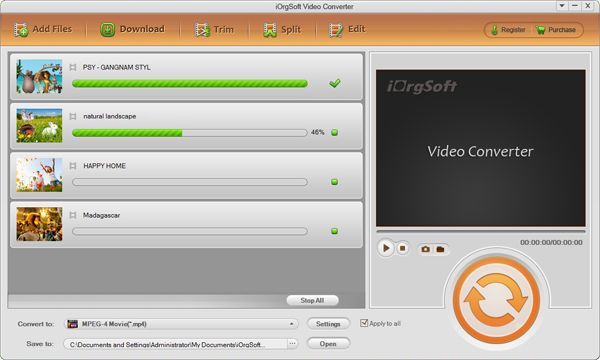
Free Download iOrgSoft MKV to DV Converter, install and launch it.
Secure Download
Secure Download
Import .mkv video files
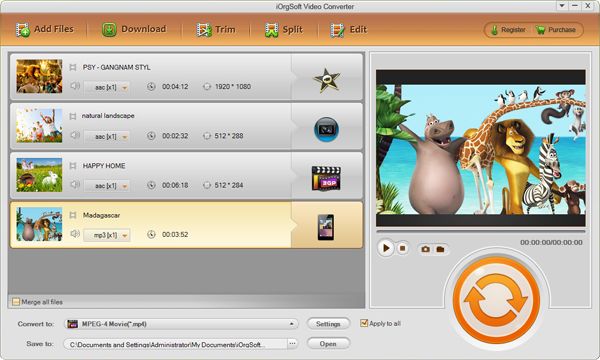
Run the MKV Video Converter, and click "Add Files" button to load MKV video files. In addition, you can load multiple .mkv files to the program at one time.
Set DV as output file format
Under the menu of "Profile", choose "DV" as output file format.
Convert MKV to DV
Hit "Start" button to start the MKV to DV conversion. When the conversion is done, you can access to the generated file the first time by default. If not, just click the "Open" button to reach the folder to store the converted .dv file.