How to convert .mp4 movies to G1/GPhone supported files?
The step-by-step tutorial shows you how to convert .mp4 movies to Gphone supproted video files with MP4 to Gphone Video Converter.
What is MP4?
MP4 is short for Moving Picture Expert Group-4. It is most commonly used to store digital audio and digital video streams, especially those defined by MPEG, but can also be used to store other data such as subtitles and still images.
MP4 also known as MPEG-4 AVC (Advanced Video Coding) is a compressed multimedia container format which simply means it can hold both video and audio files in smaller file size without major loss in quality. It is pretty much similar to mp3 except compression is much more complex.
What is GPhone?
Gphone: X/GTK-based internet telephone. Gphone is an internet telephone. As the name implies, it aims to be fully gnome-groovy, but that hasn't quite happened yet. Gphone is definitely a work in progress and you probably shouldn't bet your business on it. Don't be too hard on the program, though -- although the user interface is mighty rough, gphone does actually work pretty well. The data rate should be low enough to work over a reasonable modem connection. The protocol is nominally RTP/RTCP, and gphone complies well enough with the standard to be able to talk to speakfreely.
Step by step guides
Part1: How to convert .mp4 mvoies to Gphone supported files with MP4 to Gphone Video Converter?
Part 1: How to convert .mp4 video to GPhone supported files with MP4 to Gphone Video Converter?
iOrgSoft MP4 to GPhone Video Converter is an all-in-one software which can convert all popular video formats such as AVI, WMV, 3GP, MOV, MPG, VOB,ASF, RM, RMVB FLV, MP4, etc. to MPEG-4, H.264 Video, MP3,WAV, AAC and AMR audio that can be playable on GPhone.
Free download MP4 to Gphone Converter and install MP4 to Gphone Converter in your PC. Please download iOrgSoft MP4 to Gphone Video Converter; you can free download it from here.
Step one: Add .mp4 Video File
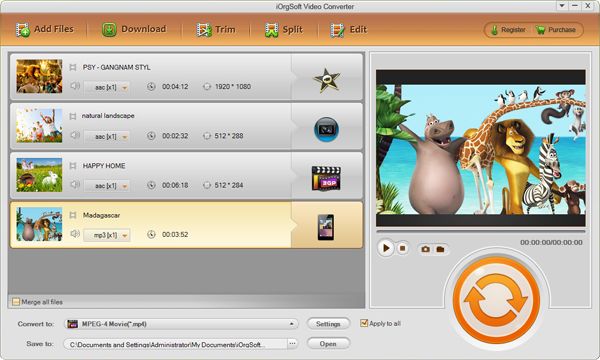
Click Play in the main menu to enter the play window. Click the add icon, the program will let you browse your hard disc. Select the format and then add the file you want to convert. Click open button.

Step Two: Video Trimming
Click Trim in the main menu to enter the trim window. Click the start icon to open movie trimming window and do as follows to capture a clip from the selected file:
Preview video: Preview the selected video file in the preview window and estimate what part of the movie you want to convert.
Set start time: You can set starting time by clicking the up and down button in the Set Start Time box and click OK. Remember that you can just change the time where the cursor is. Or you could click the first icon under the preview window and the start time will be shown in the Set Start Time box automatically.
Set end time: You can set ending time by clicking the up and down button in the Set End Time box and click OK. Remember that you can just change the time where the cursor is. Or you could click the second icon under the preview window and the end time will be shown in the Set End Time box automatically.
After you set the end time, the length of the captured clip will be shown in the selected length box for your reference.

Step Three: Video Effects
Click to enter the effect window. Our iOrgSoft MP4 to GPhone Converter allows you to set brightness, contrast and saturation. You could select the play effect such as: Gray, Emboss or Old films and then adjust it to get the best effect as you need.There are also other two icons: left-right and up-down. Click the first button, you will find the image changed from right to left. The up-down button is for you to turn over the image and enjoy the funny.
If it is necessary, you may lick "Reset" to cancel the settings.

Step Four: Video Cropping
Click Crop in the main menu to go to the crop window. The video you select will be displayed automatically. You may click Suspend button to stop it. There are four crop values on the lower left part of the crop window: Up, Down, Left and right. You can set each value to crop your video and the crop frame will move accordingly.
Before you start to crop your video, you can select an output aspect ratio from the Zoom list. There are four choices available: Original, Full screen, 16:9 and 4:3. Click default to cancel the schedule as necessary.
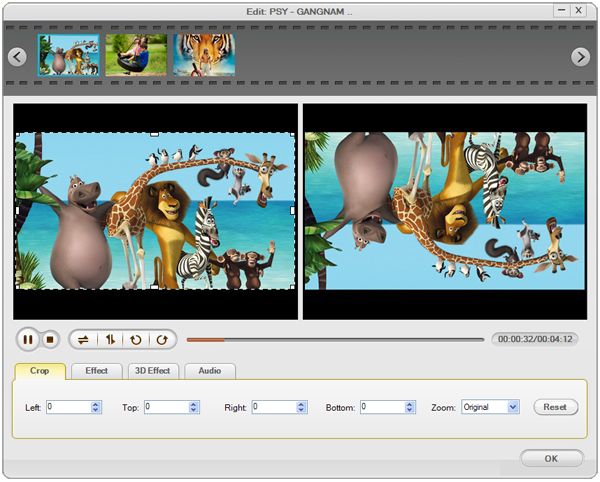
When you finish the cropping, you can see the effect in the previewing window.

Step Five: Video Conversion
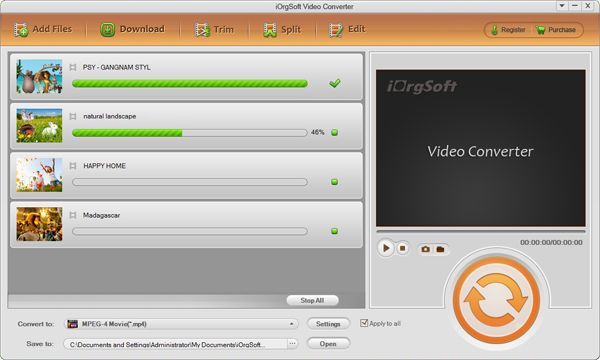
When you finish all the necessary settings, you can click the Convert icon at the bottom of the window to start converting the file. Click the Stop button to cancel the process as required. You can view the conversion progress from the progress bar.

Ok, we have already finished the whole process of converting .mp4 Video files to GPhone. Now, You will experience a new lifestyle. Just Free download and enjoy it.
Part2: How to edit, trim, effect, crop DVD movies for riping DVD movies to Gphone video files?

Movie Converter for Mac