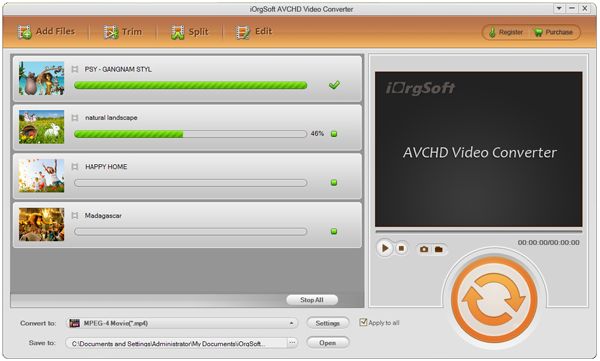

Freely 3 Steps to convert TOD to WMV for JVC TOD videos editable on Windows Movie Maker

"I used JVC camcorder to shoot footages, and their extension file name is TOD. I can't open them with Windows Movie Player. How can I make those videos friendly with my PC native player?"
"I wanted to edit TOD files that are from my JVC camcorder with WMM, but when I tried, the Movie Maker just couldn't find the files. It really confused me and I do need an accessible solution to it."
If you are using JVC camcorders no matter of JVC GZ-EX210, JVC GZ-E10, or JVC GZ-EX310 or other versions, you may find out one thing is the same, that is, their output format is TOD. This is a special video recording format just like AVCHD, MXF, H.264, etc. which are not that friendly with current used mobile devices or programs. If you want to play the TOD files freely on your PC, mainly there're two ways: one is to download a powerful player, the other is to use a Tod video to WMV converter to make a simple conversion as WMV is the best supported format for the native player of PC. As to the player, you can use Adobe Flash Player, Realplayer, etc.
But if you want to do some further editing in WMM, you have to use the second method, that is, to use a converter to convert TOD to WMV so that Windows Movie Maker can better recognize the files. Here you can try iOrgSoft TOD to WMM converter for this is a useful video converter that allows you to convert all your TOD/MOD/MTS/M2T/M2TS/AVCHD/MXF footages to any other format that you want within little time and cause zero loss. Besides, you can also do trimming, cropping, adding special effects, flipping, splitting, etc. with your videos before you convert format.
If you want your TOD files better run on your mobile devices like Apple mobile phones and tablet, Samsung phones and tablets, other Android phones, etc. you can just use this converter to make them work. That is because this TOD files to WMV Converter allows you to convert your footages to devices as well.
Secure Download
Secure Download
Its usage is quite simple, and you can learn about it in only 3 steps. Then please follow the specific steps below to learn how to use by yourself:
Import TOD files
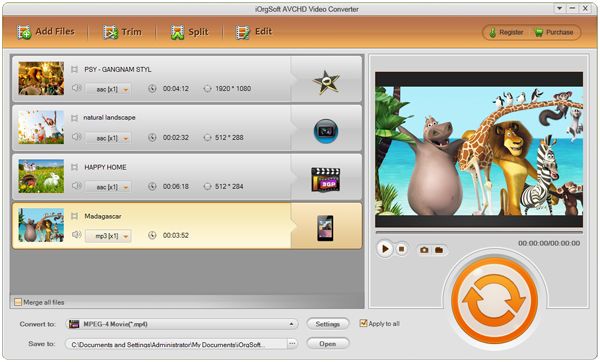
Before this, please first download the converter and install it for ready. Then you should load your TOD files by clicking the "Add File" button on the top-left corner to select the TOD files that you want to convert. This converter supports batch converting, thus, you can import as many files as you want at a time.
Set the output format
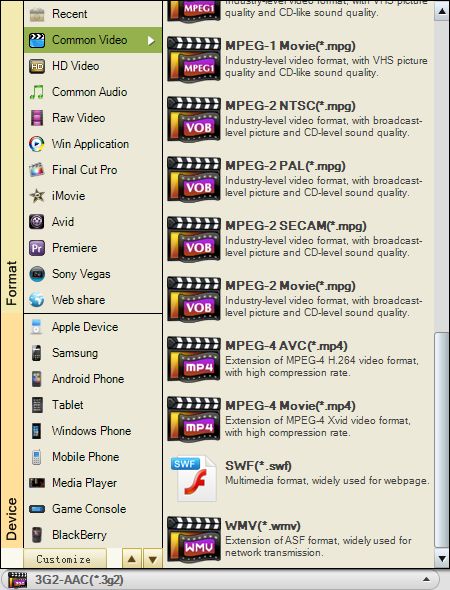
Secondly, you can come to the "Convert to" bar, single click it. Then you can find the format column. Choose "Common Video" to "WMV(*.wmv)". If you want to convert your TOD files to other mobile devices, you can find the certain device name in the lower part of format column and choose the proper output format.
Start to convert TOD to WMV
Lastly, you can finally hit the big round icon in the low-right corner to run the conversion. By the end of the conversion, you can find the converted files by striking "Open" button beside "Save" bar on the bottom of the converter interface.