Convert ts, mts, m2ts, etc avchd videos.
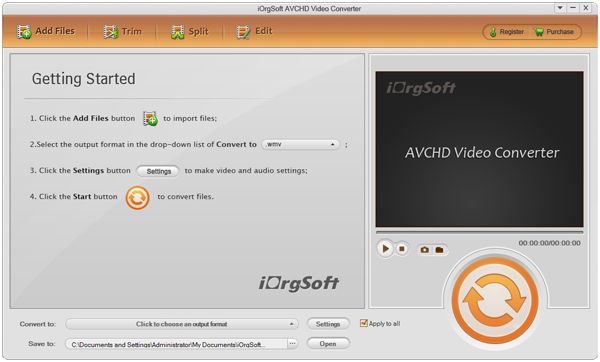
AVCHD Video Converter is a powerful video converter program that is able to convert AVCHD to friendly video formats that playable by windows media player and editable by windows movie maker or other PC platform based program. Using AVCHD Video Converter you can easily convert AVCHD to AVI, MPEG, WMV, mp3, MP4 and flv, etc.
AVCHD Video Converter supports converting between almost all popular video/audio files as well, which enables you to convert video to video, convert video to audio and convert audio to audio. Although the program is an all-in-one video tool, we provide an every easy to use interface for both of new and advanced users. With only a few clicks, you will be able to complete the conversion.
Since the footage is already on a hard drive or memory card, this process is more like a hard drive transfer than a traditional tape-based capture.
Step 1.Copy the AVCHD files from your video camera to your hard drive using UBS cable.
Step 2. Download and install iOrgsoft AVCHD Video Converter.
Download a free copy of trial to evaluate the program is encouraged. You are welcome to contact iOrgsoft customer service with your problem and concern.
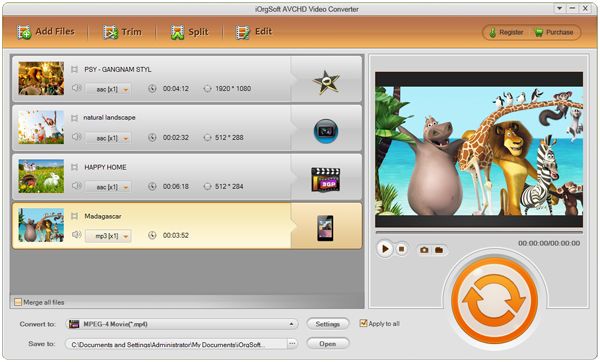
Click the "Add Files" button to browse your computer hard disc and load the AVCHD video files need to convert. You can load as many AVCHD files as you like.

Step 3. Transcode AVCHD files to your delivery format
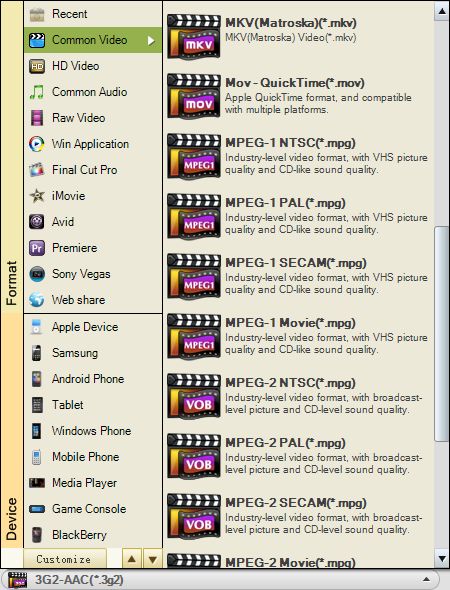
You can instruct the program what output format the files should be converted to.
Choose a format in the pull down list next the Profile field will do. You also have choices to decide where the converted video files to be stored. Just shown as below, you can choose a specific directory next to the Output filed.

Step 4. Further-fine tuning
Click Settings will open a window where you can customize the output parameters like resolution, frame rate, bit rate, encoder, etc

Hit Edit also opens a window where you can adjust aspect ration like 4:3, 16:9, you can also trim, crop video files.
Should you need to remove a certain part of video in the footage, click Trim will allow you to set starting time and ending time, then click OK to commit, the converted video only include the part you select.

Step 5 Convert video
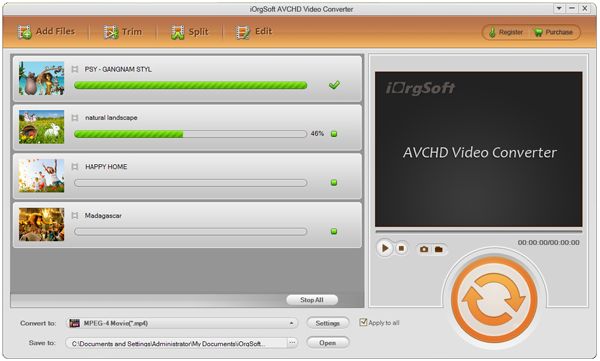
Hit Start, the conversion process will soon be carried out, just a few minutes; the entire list of AVCHD files will turn to your delivery format.
AVCHD Video Converter supports converting between almost all popular video/audio files as well, which enables you to convert video to video, convert video to audio and convert audio to audio. Although the program is an all-in-one video tool, we provide an every easy to use interface for both of new and advanced users. With only a few clicks, you will be able to complete the conversion.
Since the footage is already on a hard drive or memory card, this process is more like a hard drive transfer than a traditional tape-based capture.
Step by step to convert AVCHD format to avi, mpg, wmv, mp4, flv, mov, mp3.
Step 1.Copy the AVCHD files from your video camera to your hard drive using UBS cable.
Step 2. Download and install iOrgsoft AVCHD Video Converter.
Download a free copy of trial to evaluate the program is encouraged. You are welcome to contact iOrgsoft customer service with your problem and concern.
Click the "Add Files" button to browse your computer hard disc and load the AVCHD video files need to convert. You can load as many AVCHD files as you like.

Step 3. Transcode AVCHD files to your delivery format
You can instruct the program what output format the files should be converted to.
Choose a format in the pull down list next the Profile field will do. You also have choices to decide where the converted video files to be stored. Just shown as below, you can choose a specific directory next to the Output filed.

Step 4. Further-fine tuning
Click Settings will open a window where you can customize the output parameters like resolution, frame rate, bit rate, encoder, etc

Hit Edit also opens a window where you can adjust aspect ration like 4:3, 16:9, you can also trim, crop video files.
Should you need to remove a certain part of video in the footage, click Trim will allow you to set starting time and ending time, then click OK to commit, the converted video only include the part you select.

Step 5 Convert video
Hit Start, the conversion process will soon be carried out, just a few minutes; the entire list of AVCHD files will turn to your delivery format.

iPod Video Converter