

Effortlessly Finish Converting MPG to MKV on Mac with Mac MPG to MKV Converter

How to convert .mpg to .mkv files on Mac OS?
MKV is a container format developed by Matroska that supports several types of video compression and video codec. MPG to MKV Mac converter is a fantastic converter to convert MPG to MKV(Matroska format) for playing on Samsung and LG televisions,LG Blu-ray players or on VLC Media Player, Mplayer, Apple QuickTime Player with the Perian component installed on Mac OS.
Mac MPG Converter helps you to convert MPG to MP4 for iPod, iPhone, Apple TV, Gphone, Blackberry, PSP; MPG to MPEG-4 for iMovie, Final Cut Express, Final Cut Pro; MPG to 3GP for 3G Mobile Phones. It is a wonderful converter to convert MPG to all popular formats: MP4, 3G2, 3GP, AVI, FLV, DV, M4V, MKV, WMV and SWF.
MPG to MKV converter Mac surpasses other converters due to its user-friendly interface, easy-to-use operation design, and powerful function. You can flip your videos upside down or right side to left to have a different views. If you just want to convert part of your videos, you can enter Trim panel to select the segment accordingly. What's more, feel free to adjust special effects (Brightness, Contrast and Saturation) as you like on effect panel.
Download and install mpg to mkv converter for Mac
Secure Download
Secure Download
Import MPG videos to the software
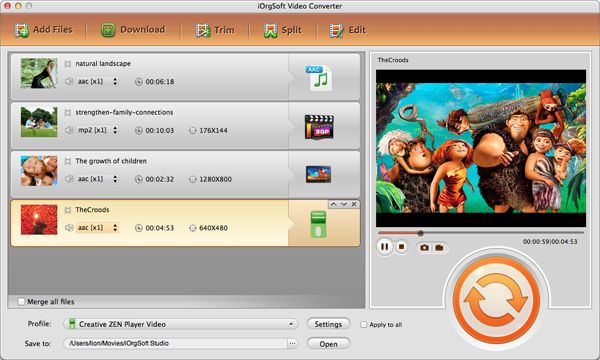
Launch iOrgsoft MPG to MKV Video Converter on your Mac, click the Add Files button to load MPG files to the program. Alternatively, you can directly drag and drop the MPG files to this application. Since batch conversion feature is enabled, you are allowed to add many MPG video files to this software. You can preview the videos to confirm whether the videos are the ones you want to convert.
Choose MKV as output format
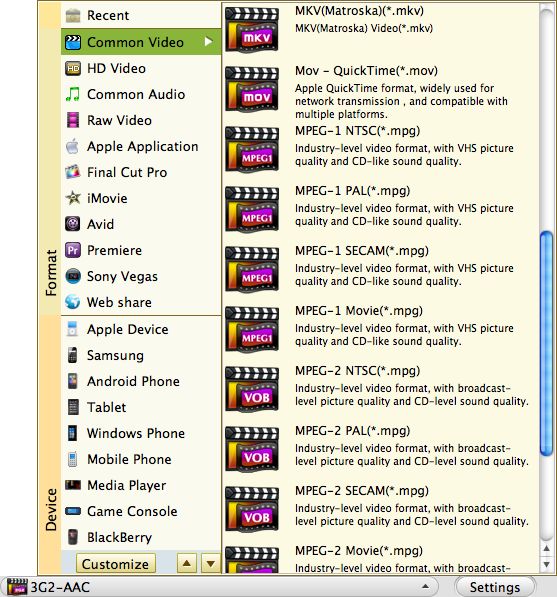
Next, hit the format icon to enter the format list, go to the Common Video column to set MKV as output format. This Video Converter provides you with some useful editing functions, sat, you can trim, crop, split, merge, add watermark, add 3D effect to video. For more details, refer: User Guide of Video Converter Mac.
Output settings
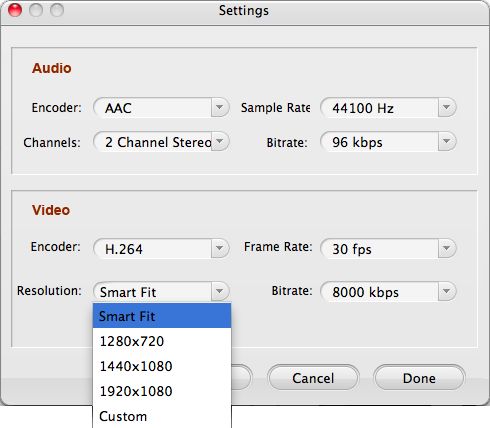
This software lets you to customize video resolution, bit rate, frame rate and audio parameters as well. Hit Settings button to set yourself. It is just as easy as your eyes.
Convert MPG videos to MKV
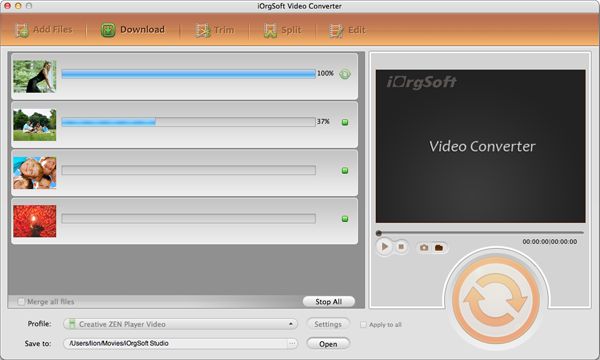
At last, when you finish all settings, click the Convert button to start converting MPG to MKV. After the conversion is completed, a message will pop up to direct you to open the folder where the converted MKV videos are saved.
Related Articles
- Edit/split/cut/trim/join/ MPG files
- Convert mpg to divx avi flawlessly
- Convert mpg to flash video on mac
- Edit/split/cut/trim/join MKV files
- How to Convert FLV to MKV on Mac (Mountain lion included)
- Convert Mod to MKV on Mac
- Convert Tod to MKV on Mac Guide
- How to Convert SWF to MKV on Windows and Mac