

MPEG2 to iPod Solution

Want to play MPEG1 .mpg file on iPod (iPod Touch/iTouch, iPod Nano)? Have tried to directly transfer the MPEG1 file into iPod via iTunes, but failed. Why does it happen? Briefly speaking, it’s because the MPEG1 file format isn’t iPod-compatible file format. So let’s firstly review the iPod supported multimedia file formats. Take iPod Touch as an example:
iPod supported file types:
H.264 video up to 1080p, 30 frames per second, Main Profile level 4.1 with AAC-LC audio up to 160 Kbps, 48kHz, stereo audio in .m4v, .mp4, and .mov file formats
MPEG-4 video up to 2.5 Mbps, 640 by 480 pixels, 30 frames per second, Simple Profile with AAC-LC audio up to 160 Kbps per channel, 48kHz, stereo audio in .m4v, .mp4, and .mov file formats
Motion JPEG (M-JPEG) up to 35 Mbps, 1280 by 720 pixels, 30 frames per second, audio in ulaw, PCM stereo audio in .avi file format
In order to make iPod play MPEG-1, you need to convert MPEG1 to iPod. iOrgSoft MPEG1 to iPod Converter can be your excellent assistant, which can flawlessly convert MPEG-1 .mpg to iPod-friendly file format like H.264, MPEG4. No matter which iPod model you have, the application can well fit for it. Now, free download the MPEG1 to iPod Video Converter and then go to the MPEG-1 to iPod task.
Secure Download
Secure Download
Import mpeg-1 files into the program
Click to "Add" button or go to "File" menu and locate the MPEG1 .mpg file(s) from hard drive to the program.
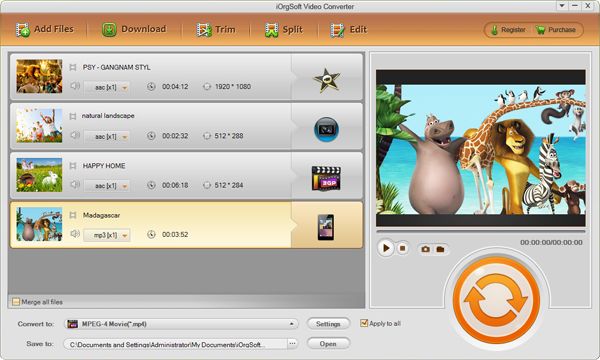
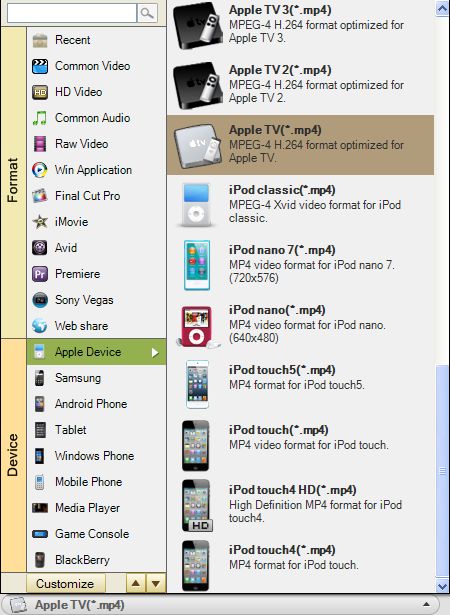
Select iPod as output device
From the format list, select iPod as output device. Before proceeding to the conversion, you can edit or enhance the video quality.
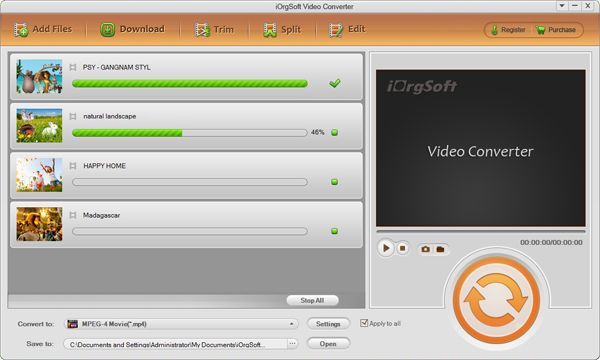
Start the conversion from MPEG1 to iPod
Click "Start" button to run the conversion from MPEG1 to MP4 for iPod. Click the Stop button to cancel the process as required. You can view the conversion progress from the progress bar.
Related Articles
- Convert MPEG2 to MP4, WMV, MPG, AVI
- iOrgsoft MPEG Converter
- Convert MPEG to MOV
- MOV to iPod Converter
- How to import VOB to iPod with VOB to iPod Converter
- An Easy Way to Convert MPEG 2 videos to iPod
- Smoothly Import ASF Files to iPod for Further Playback
- FLV to iPod Converter Convert FLV to iPod Easily and Efficiently