

Convert TOD files will enable you to convert JVC TOD video files to mov, hdv, mpeg-4, flv, h264, or other common video formats friendly on Mac with best quality. HD TOD files from any of the JVC Everio GZ-# can be carefully encoded on Mac for playback, easy transfer and edit using TOD file converter. After converting tod file to other format, it will be simple thing to transfer tod to iMovie or import tod to Final Cut for editing purpose
Secure Download
Secure Download
Fastest tod file converter for JVC tod camera on Snow Leopard and PowerPC.
Whether you need to convert tod file with Snow Leopard or PowerPC, the fastest tod file converter can always give its best shot with stable performance. The program has great compatibility on Mac system from 10.4 to 10.6 or later, and at the same time the tod file converter is improving as time goes by.
Supported camcorders by tod file converter
JVC TOD camcorders
* 2007: GZ-HD7 (HDD, SD/SDHC card), GZ-HD3 (HDD, SD/SDHC card)
* March 2008: GZ-HD5 (HDD, MicroSDHC card), GZ-HD6 (HDD, MicroSDHC card)
* June 2008: GZ-HD30, GZ-HD40 (HDD, MicroSDHC card, dual TOD and AVCHD recording)
How to convert tod file to Mac with best settings and step by step instruction:
Click here to download and install it by running Tod converter for mac
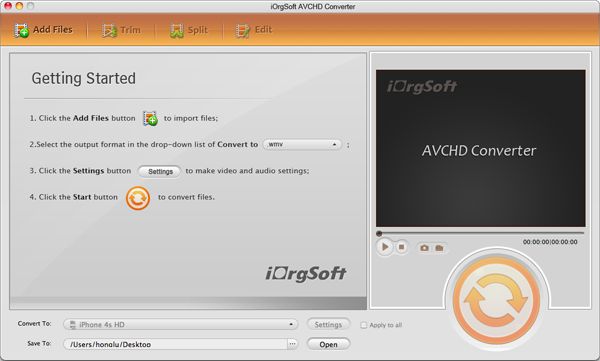
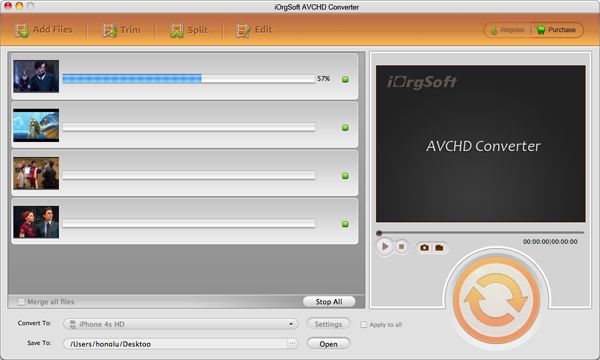
Click the Add File...to choose a file type that need to be converted, you are allowed to load more video files in different formats. while you can set an output path for the resulted video by hitting the Output drop-down list.
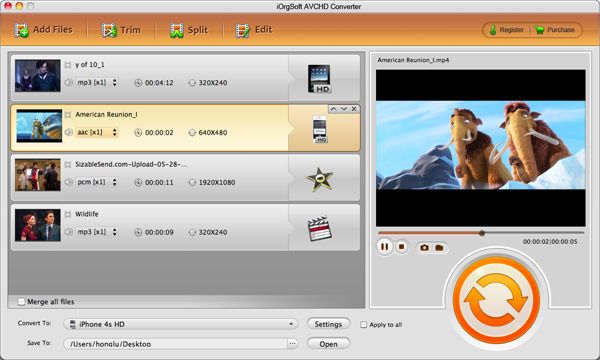
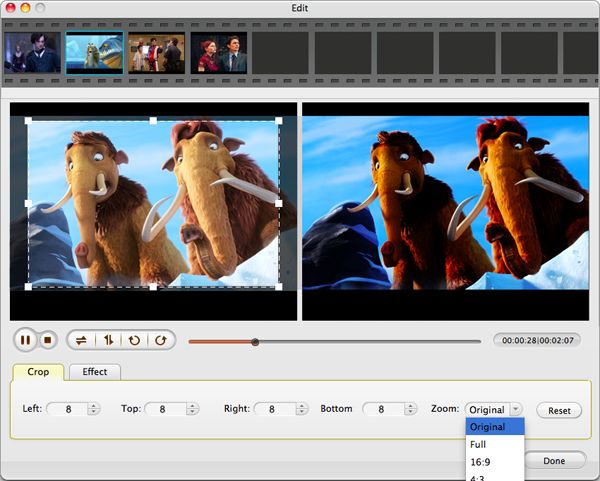
A. Click the Trim button to set which segment of the clip need to be converted.
You can choose a small part of a video or the whole one to convert to the selected format.
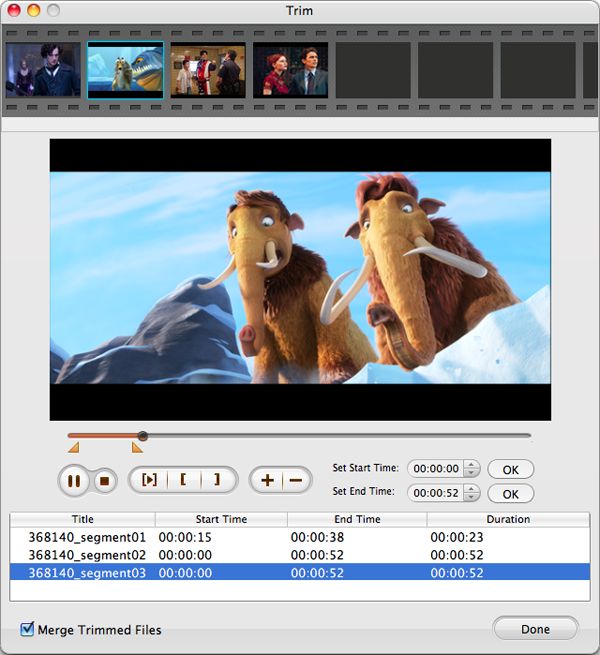
B. Click the Effect...to tune the saturation, contrast, brightness values and make sure are the one you preferred, preview the change on the screen.
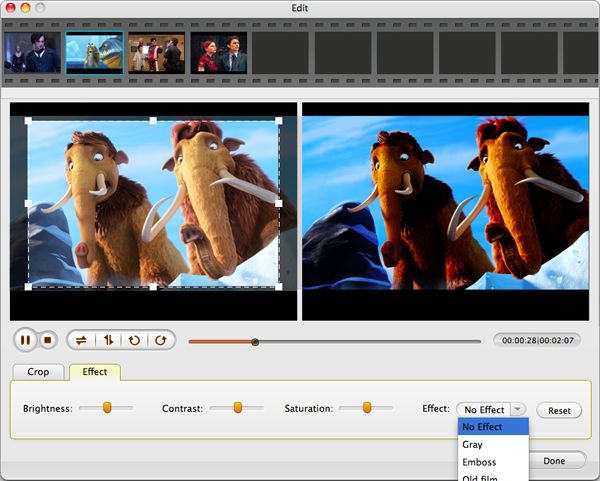
C. Click the Crop button to cut the unnecessary part or black part of the movie.
This step will take you a moment to carry out the conversion process, the time vary with different parameters you and the file size itself.

$35.00
Best program to convert AVCHD MTS, M2TS , AVCHD Lite to MOV, MP4,etc.on Mac with original quality.


$35.00
Transfer videos from portable cameras to any other popular format file on Mac for further use.
$39.95
Mac DVD burning program to burn videos to DVD on Mac and create DVD menu with stylish template.




Terms & Conditions| Privacy| Sitemap| Contact Us| About Us| Affiliate| Newsletter| License Agreement| Uninstall
Browser compatibility : IE/Firefox/Chrome/Opera/Safari/Maxthon/Netscape
Copyright © 2007-2016 iOrgsoft Studio All Rights Reserved