
Convert FLV to AAC

Wish to extract .flv audio to AAC and play it back on iTunes or audio media player? As we know that FLV video isn’t well compatible with media player such as Windows Media Player, iTunes, QT, so if you extract audio from .flv video to AAC, you may find it’s much easier to play the audio part. Firstly, let’s get to know better the AAC file format.
About AAC file format:
Advanced Audio Coding (AAC) is a standardized, lossy compression and encoding scheme for digital audio. AAC is the most used audio format for iPhone, iPod, and iTunes. AAC is also the standard audio format for PSP, Nintendo's Wii and the MPEG-4 video standard. All of the music sold in the iTunes Music Store uses AAC. Most of the music play on iPod is in the format of AAC.
To convert or extract audio from FLV to AAC, you can use the iOrgSoft FLV to AAC Converter. Under the help of the AAC audio conversion program, you can flawlessly convert .flv video to AAC without audio quality loss. What’s more, it makes it possible to export other audio file formats such as MP3, M4A, AC3, WAV, etc. Meanwhile, you can personalize the output audio file by setting Sample Rate, Channel, Bitrate, etc.
Secure Download
Secure Download
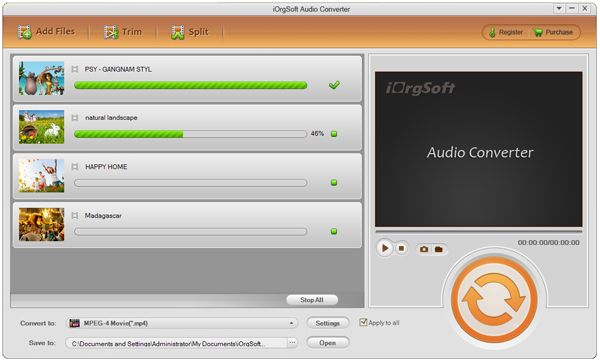
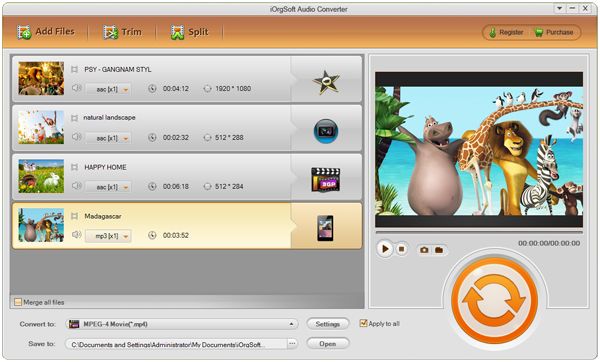
Run the FLV to AAC Converter and load file(s)
Follow by the wizard to finish the installation and launch the application. Then click "Load File" or "Load Folder" to locate one or several .flv files into the program.
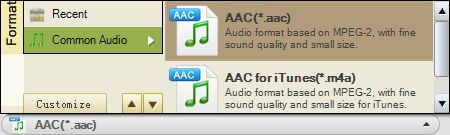
Select AAC as output file format
In the drop-down list of "Format", you can choose AAC-Advanced Audio Coding (*.aac) as the target file format.
Start converting FLV to AAC
Hit "Start" button and let the WAV to M4A Converter do the rest for you. For your convenience, you can directly access to the generated file(s) by clicking "Open" button.