

Convert MKV to MP4

How to Convert MKV to MP4
MKV is an open standard free container format, a file format that can hold an unlimited number of video, audio, pictures, or subtitle tracks in one file. Some HD videos download form internet are in the .mkv format.
Merits and demerits always accompany each other. MKV format falls in this story. It holds high quality videos but cannot play on most portable devices such as iPhone 4S, iPad, Kindle Fire and sp on. So, in order to enjoy HD MKV videos on phones or tablets, convert MKV to MP4 is necessary all the time. To do the job, you just need MKV to MP4 converter to help you.
Secure Download
Secure Download
MKV to MP4 Converter can offer ultimate solution to convert MKV and other HD videos such as AVCHD, MTS, HD MOV, HD AVI to MP4 for playback on phones and tablets.
Free download the MKV to MP4 Converter, and this guide will show you how to convert MKV to MP4 step by step. If you are a Mac user, please turn to iOrgsoft MKV to MP4 Mac.
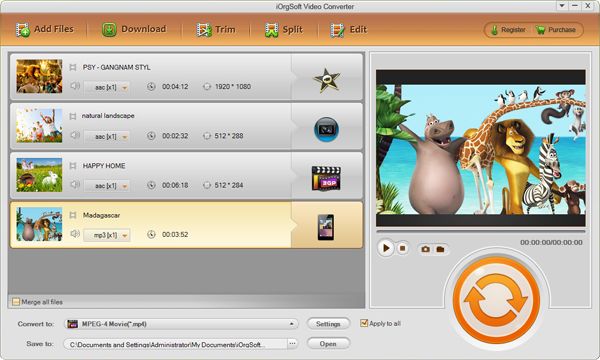
Load MKV files.
After run the program, hit Add file button to load MKV files. You can drag the files to the program directly as well.
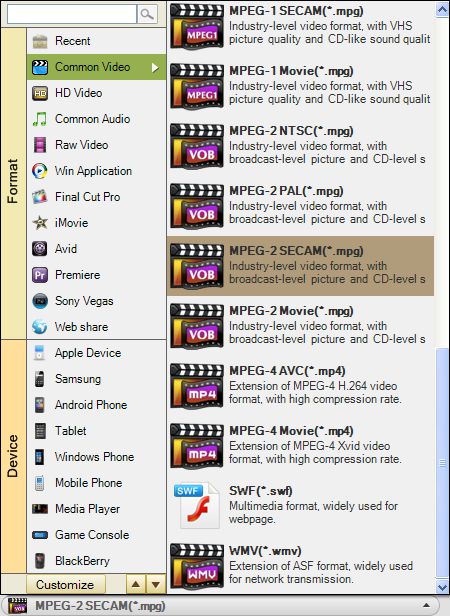
Set MP4 as output format
Hit the format icon or "Convert to" options to choose MP4 as output format: "Common Video" - > "MPEG-4(*.mp4)" ,HD MP4 is also available to export according to your need.
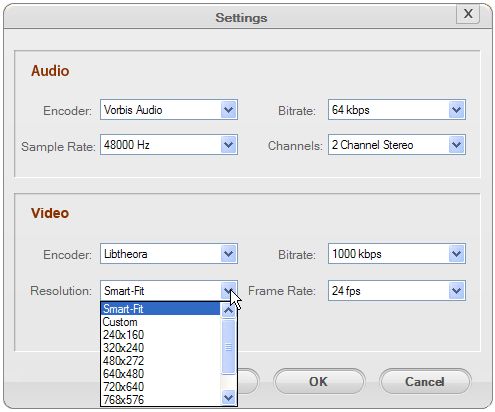
Setting
Here you can set output video and audio parameters as below.
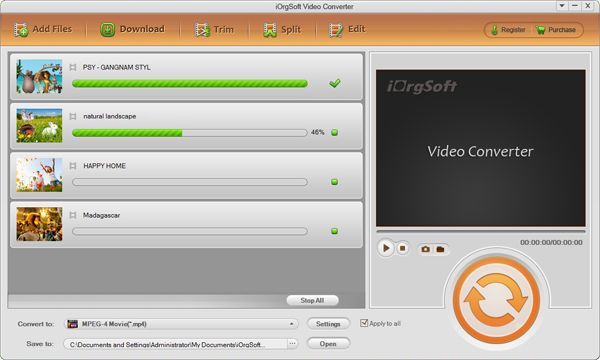
Convert MKV to MP4
After all settings are done, hit the big convert button to convert MKV files to MP4, a bar pop up to will show you the status of the conversion.
Optional: you can customize you videos by split, merge and edit videos with the MKV to MP4 converter conveniently, for detailed guide, please go to: http://www.iorgsoft.com/Video-Converter/how-to/convert-video-files/
Related Articles
- How to Cut MKV Videos
- How to Add Effects to MKV Videos
- MKV to MOV-The easiest way to make MKV files playable in QuiciTime with MKV to MOV Converter
- Trim MP4 Video
- How to edit MP4 files on windows?
- How to merge multiple MP4 files into single one
- How to Convert MVI to MP4 on Windows and Mac(Mountain Lion included)
- How to Convert QuickTime to MP4 on Windows and Mac